
The reason we find the integrations so useful is simple. In our work with customers, we often see the source material spread across different folders and tools before a project even starts – and finished courses exported and uploaded by hand at the end. The integrations remove several of those manual steps (downloading, copy-pasting, re-uploading and re-exporting).
That said, they’re a starting point rather than full automation. The AI connection creates draft outlines, not finished courses, and it currently works with Articulate 360 AI and Frontline only. Knowing that from the start makes it much easier to get real value out of them.
Google Drive and OneDrive: build from what you already have
Most organizations already keep their policies, process descriptions, presentations and manuals in Google Drive or OneDrive. With the new integrations, you connect your account to Articulate 360 AI or Articulate Frontline. When you create training with AI, you can then import a document directly from there, instead of downloading it to your computer and uploading it again. The result is an editable draft that you then refine in your Articulate 360 AI or Articulate Frontline platform as usual.
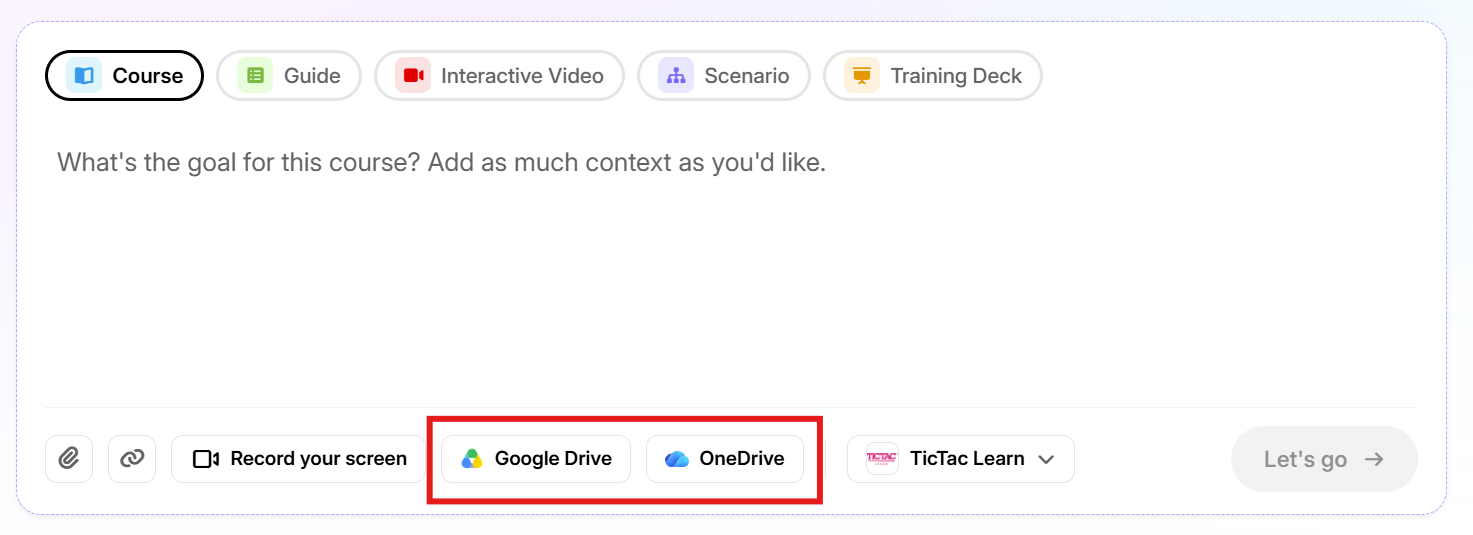
Apart from saving a few clicks, one benefit is that you build from the version that actually lives in the shared folder, rather than an old copy someone saved locally three months ago.
Here is an example: An HR team keeps its onboarding handbook as a Word file in a shared OneDrive folder. Instead of rewriting it as a course, you import the handbook straight into Articulate 360 AI and get a first draft with lessons based on the actual content. From there you can add knowledge checks, apply your organization’s brand and adjust the tone for new employees.
Another example: A product team writes its release notes in Google Docs. Each time a new release comes out, you import the latest document and turn it into a short microlearning for the support or sales team (for example a five-minute “what’s new” module).
Pro tip ➔ A tidy source document makes for a better draft. Take ten minutes to clean it up: remove outdated sections, eliminate duplicate information and delete internal comments.
Claude, ChatGPT and Microsoft Copilot: start in the AI tool you already use
The second type of integration is built on MCP (Model Context Protocol), an open standard that lets AI assistants connect to other tools and data sources. Articulate MCP is a connector you turn on inside your AI chat. You keep working in Claude, ChatGPT or Copilot exactly as before, but when the connector is enabled, you can describe the training you want (topic, audience, goals and how in-depth it should be) and, after you approve the action, a draft outline appears in your Articulate 360 AI library. In there, it becomes a course outline and in Frontline it becomes a kit. You can also ask the AI to list and search based on your existing trainings, for example by title, last updated date or publication date.

It’s worth knowing what the connector can’t do, since this is one of the most common questions we get in our trainings. You turn it on only in the conversations where you need it and it currently has limited functionality: it can create drafts and look up existing training, but it can’t publish, share or pull analytics on your behalf. Those steps still happen in Articulate 360 AI or Frontline.
Here is a practical example: You’ve spent an afternoon discussing a new GDPR refresher with Claude and it already has access to your internal policy documents through other connectors. Rather than copying the whole conversation into Articulate 360 AI, you simply ask Claude to create an outline for a 20-minute course for new managers. Claude returns a link, you open the outline in Articulate 360 AI, generate the lesson content and continue building from there.
Another example: Before planning next year’s content, you ask Copilot which of your courses about workplace safety haven’t been updated recently. Copilot lists the courses by last updated date, which gives you a quick starting point for a content audit without exporting anything.
A few practical things to keep in mind when you set it up:
- Admin approval: If your organization uses Claude Enterprise or ChatGPT Enterprise, Business or Education, an IT admin needs to add the Articulate connector before individual users can connect.
- Copilot access: The Copilot integration needs to be enabled for your Articulate 360 account, which you request from Articulate. There’s also a separate listing for organizations whose Articulate 360 data is hosted in the EU, so make sure you install the one that matches your account (this is relevant for many Nordic organizations).
- Data and policies: Content you share with Claude or ChatGPT falls under their policies, not Articulate’s. So it’s a good idea to check with your IT or security team what can be shared before you start.
Unfortunately, there’s no Storyline integration for Articulate MCP at the moment. What you can do is use the outline the AI creates in Articulate 360 AI as a script or storyboard for your Storyline project. Alternatively, build the course in Articulate 360 AI and add your custom Storyline interactions as Storyline blocks.
Thinkific: publish directly to your learning platform
The third integration is about distribution. If you deliver your training through Thinkific, you can now publish courses from your Articulate 360 AI dashboard to Thinkific with one click. An Articulate 360 admin sets up the connection once on the Integrations page by entering the Thinkific site URL and logging in. When you publish, Articulate 360 AI builds a SCORM 2004 (4th Edition) package and sends it straight to Thinkific, which then handles enrolment, the learner experience and analytics. If a course needs updating, there’s a link in Thinkific’s course manager that takes you back to the course in Articulate 360 AI.
To use it, you need Articulate 360 AI on a Teams plan and a Thinkific Plus account.
Let’s look at a practical example: An industry association sells certification courses to its members through Thinkific. When a regulation changes, the course owner updates the affected lesson in Articulate 360 AI and republishes directly to Thinkific. No exporting a zip file, no re-uploading and no risk of uploading the wrong version.
Thinkific is currently the only learning platform with a native integration. If you use another LMS (for example Skillhabit or Docebo), nothing changes in your workflow: what you can do is continue to export your course as SCORM or xAPI and upload it as before. And if you work in Frontline, Quick Share links are currently the supported way to deploy kits.
Putting it together: one workflow with Articulate 360 AI integrations
The integrations are most useful when you combine them. A typical flow could look like this: you start with a policy document in OneDrive, discuss the audience and learning goals with Claude or Copilot and let the AI create an outline in Articulate 360 AI via Articulate MCP. You then import the source document, generate and refine the lessons, add knowledge checks and apply your Brand. After a review round in Review 360, you publish to Thinkific, or export SCORM for your own LMS. Each of those steps used to involve at least one download, upload or copy-paste. Now most of them don’t.
Summary
The integrations won’t build your course for you, but they remove many of the steps around it, from bringing content in to publishing it. Start with the integration that fits the tools you already use and discover how much time it can save you on your next project.
FAQ about Articulate 360 AI integrations
Do the Articulate 360 integrations cost extra?
No, the integrations are included in Articulate 360 AI (and Frontline). The Thinkific integration does require an Articulate 360 AI Teams plan and a Thinkific Plus account.
Can Claude or ChatGPT build a complete course in Articulate 360 AI?
Not today. Through Articulate MCP, the AI creates a draft outline in your Articulate 360 AI library, which you then use to generate, edit and publish the course in Articulate 360 AI.
Does Articulate MCP work with Storyline?
Unfortunately, not yet; it currently works with Articulate 360 AI and Frontline only. What you can do is use the AI-generated outline as a storyboard for Storyline or embed Storyline interactions in Rise as Storyline blocks.
Want to talk more about this?
Want to read more on similar topics?
Articulate Rise vs. Storyline: How to pick the right tool for your course
5 Articulate Rise features you’re probably not using to their full potential