
What AI avatars in Articulate 360 are and where you find them
An AI avatar is a generated presenter: a character on screen who speaks your script with an AI voice and synced lip movements. In Articulate 360 the feature is called AI Avatars.
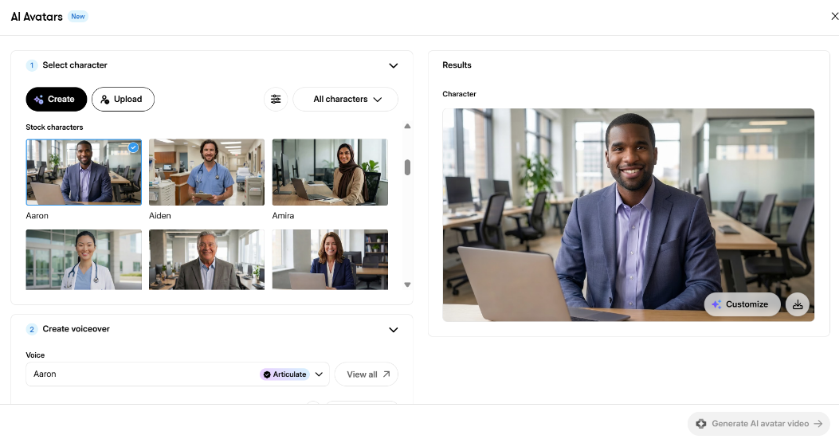
In Articulate 360 AI, you will find AI Avatars within your block library. Open the block library and look under the Generate AI block category. In Articulate Storyline, it is accessible from your toolbar next to the other AI features. You pick a character, give it a voice and a script, and Articulate generates a video you can place in your training. Over 80 languages are currently supported, which makes the feature especially relevant if you train teams in several countries.
When AI avatars help learners, and when they don't
When I demo AI Avatars, the first reaction is often scepticism. People expect the feature to be a passing trend, or assume the quality won't hold up in a professional setting. The lip sync in particular has improved drastically since the first release and now follows the voiceover seamlessly.
The more important question is purpose. A one-minute avatar video carries about 150 words, roughly half a page of text, in a format learners are more likely to watch than skip. That makes avatars strong for short introductions and explanations, where a face and a voice help learners settle into a topic.
They are weaker when learners need to see a situation unfold. If your training should show a specific scenario, such as a conversation or a situation at work, Vyond currently offers more options. Our comparison of Vyond Turbo and Vyond Studio helps you choose the right approach there. My rule of thumb: don't add an AI avatar just because you can. It should serve a clear purpose for your learners.
Use cases that work well
AI avatars work best where a short, personal message does more than a block of text:
- Onboarding, with a recurring guide who welcomes new employees and introduces each module
- Compliance intros that explain why a policy matters before the learner reads the details
- Multilingual courses, where the same message reaches teams in their own language
- Short course and module introductions that set expectations in a minute or less
From novelty to company identity: an example from a demo
In one customer demo, the team's first reaction was polite doubt. It looked fun, but how would it fit into their daily work as content producers without coming across as a gimmick? Instead of showing more stock characters, we uploaded their company mascot as the reference image. They gave me a sample script for an internal onboarding course, and together we picked a voice that suited the mascot.
You could see the scepticism fade. Within minutes they were mapping out where the mascot could appear in their existing trainings, as a way to strengthen their company identity, give learners a familiar face and create a common thread through the course. The feature hadn't changed. What changed was that they saw it applied to their own content.
How to create an AI avatar in your course, step by step
- In your Rise 360 lesson, open the block library and choose AI Avatars under Generate AI.
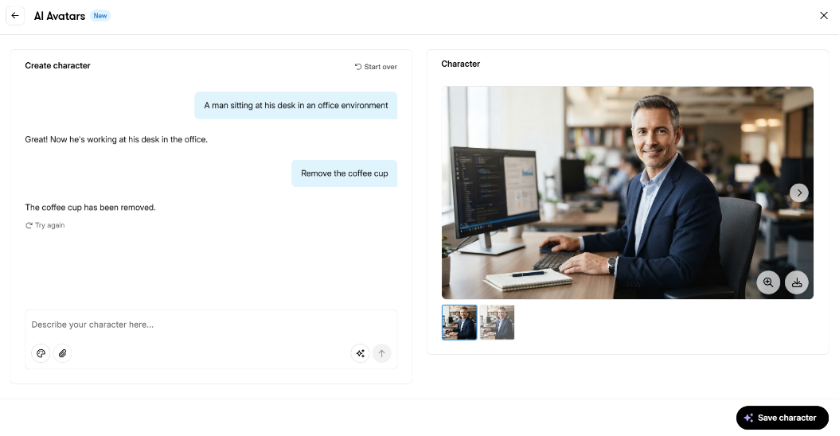
- Choose your character. Pick an existing one, generate a completely new one or upload a photo as reference.
- Choose a voice from the AI voices in the voice library.
- Add your script, the text you want the avatar to say.
- Adjust the advanced voice settings if needed, such as speed and similarity, and select which AI voice model to use.
- Decide whether the video should be optimised for an LMS and whether AI should generate captions for it.
- Generate the video and place it in your lesson.
If you generate a new character, you describe it in a chat and refine it step by step until it matches what you had in mind.
Want to see what else Articulate's AI can do for your team? Take a look at Articulate Nova.
Tips for natural results: script, length, voice and language
Iteration is key. When you generate a completely new avatar, don't settle for the first version. Articulate lets you fine-tune the details step by step, so keep going until the character fits your vision and your learners.
Keep the script short and to the point. With about 150 words per minute, one clear message per video is usually enough. If you need more, split the content into several short clips or let the text in your lesson carry the details.
If you upload a photo as reference, the result depends on its resolution and angle. A photo taken with a modern smartphone usually gives great results. Match the voice to the character and the topic, and use the speed and similarity settings to make delivery sound natural. Turn on captions so learners can follow along without sound.
Credits, review and responsibility: what to plan for
AI Avatars is one of the Articulate 360 features that requires credits. Generating one minute of avatar video costs 1,000 credits. Since one minute holds about 150 words, script length translates directly into credit use. Our guide on how Articulate credits work helps you plan for it.
Plan time for review as well. Watch every avatar video before it goes live and check the script, pronunciation and captions, just as you would with any other course content.
If you upload a photo of a real person, including yourself or a colleague, make sure that the person shown has approved the use of their photo for this purpose. Involve your own legal or data protection team before you publish training with an avatar based on a real person.
Common mistakes we see in projects
- Adding an avatar because you can. If you can't say what it does for the learner, leave it out.
- Scripts that are too long. AI avatars are meant for short introductions and explanations, not for reading out a whole policy.
- The wrong avatar for a sensitive topic. A character's look and voice set the tone of your training, so choose carefully.
- Using an avatar to show a scenario. When learners need to see a specific situation, Vyond does the job better.
- Settling for the first version of a new character instead of refining it.
None of these are reasons to avoid AI avatars. They are reasons to decide on purpose first and pick the tool second.
FAQs: AI avatars in Articulate 360
Do AI avatars in Articulate 360 use AI credits?
Yes. AI Avatars is one of the Articulate 360 features that requires credits. Generating one minute of avatar video costs 1,000 credits. Because one minute holds roughly 150 words, a tight script keeps both your video and your credit use under control. Plan your scripts before you generate, so you don't spend credits on drafts.
Can AI avatars speak several languages?
Yes. AI Avatars currently supports over 80 languages, and you choose the voice from Articulate's library of AI voices. That makes the feature practical for organisations that train teams in several countries. Review each language version before publishing, so pronunciation, terminology and captions match what your learners expect.
Are AI avatars a replacement for real video or a presenter?
Not entirely. AI avatars are strongest for short introductions and explanations, where a face and a voice help learners engage with a topic. When learners need to see a specific scenario or situation, an animated video made with Vyond is usually the better choice. Choose the format based on what the learner needs to see.
What should you consider before using an avatar based on a real employee?
First, the person in the photo must have approved that their image is used to create an AI avatar for this purpose. Then check the photo itself: resolution and angle affect the result, and a photo from a modern smartphone usually works well. Involve your legal or data protection team before you publish.
How good is the lip sync of AI avatars in Articulate 360?
Much better than when the feature was first released. The lip sync has improved drastically and now follows the voiceover seamlessly. The quality of the result still depends on your input, so use a clear reference image and a natural script, and preview the video before you place it in your course.